![LifeSaver_Mobile_white_logo_with_tagline.png]](https://2618983.hs-sites.com/hs-fs/hubfs/LifeSaver_Mobile_white_logo_with_tagline.png?width=175&height=50&name=LifeSaver_Mobile_white_logo_with_tagline.png)
1. Do Not Try to Delete the App
Work phones and tablets:
Your employer has most likely deployed the LifeSaver app to your work-issued Apple phone or tablet through a Mobile Device Management (MDM) system. The MDM system prevents users from deleting the app from your work-issued device.
Personal phones:
If your employer has asked you to enroll your Apple personal phone into the LifeSaver program, please do not delete the app or the app will become inactive and be reported to your managers (see Section 5: Compliance Reporting and Driver Reminders).
2. Keep Location Services Setting to "Always Allow"
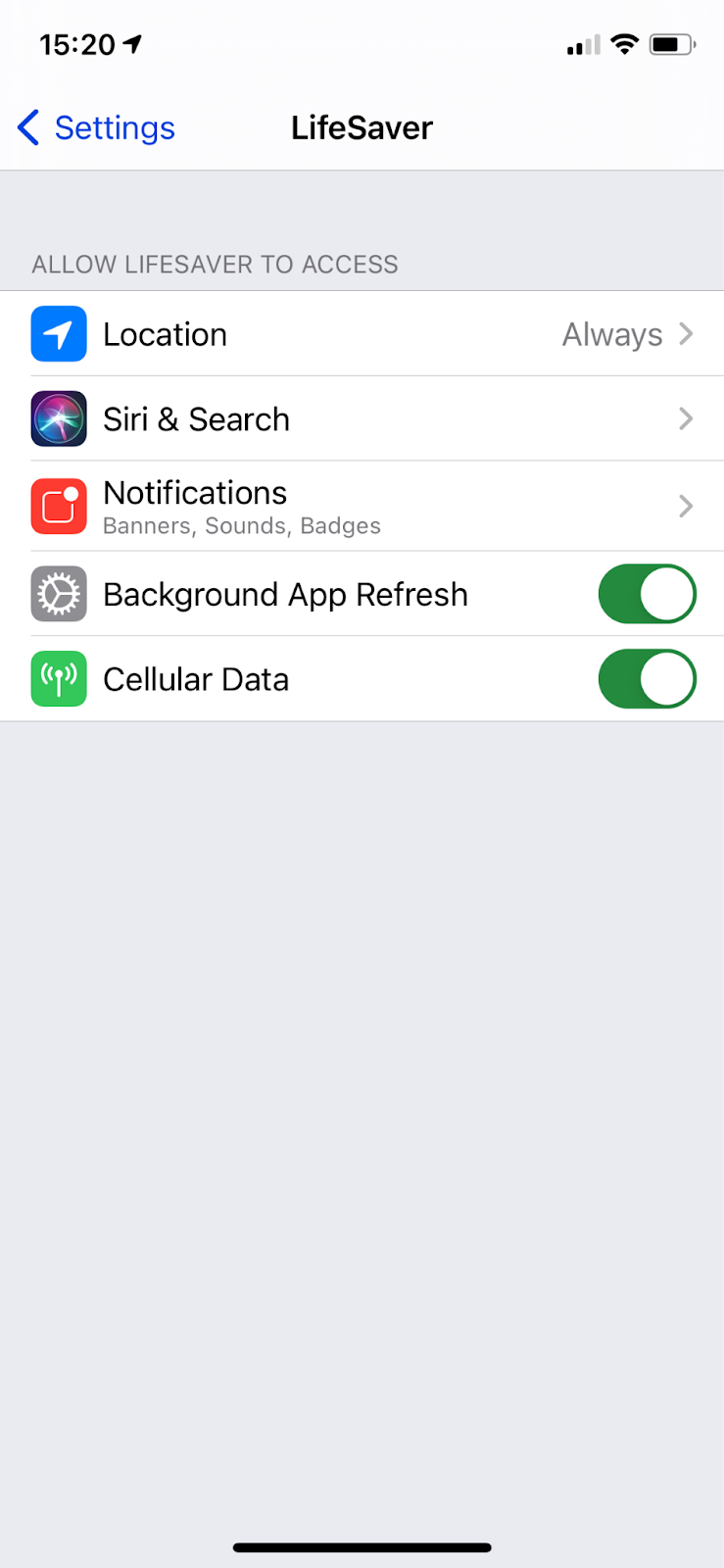
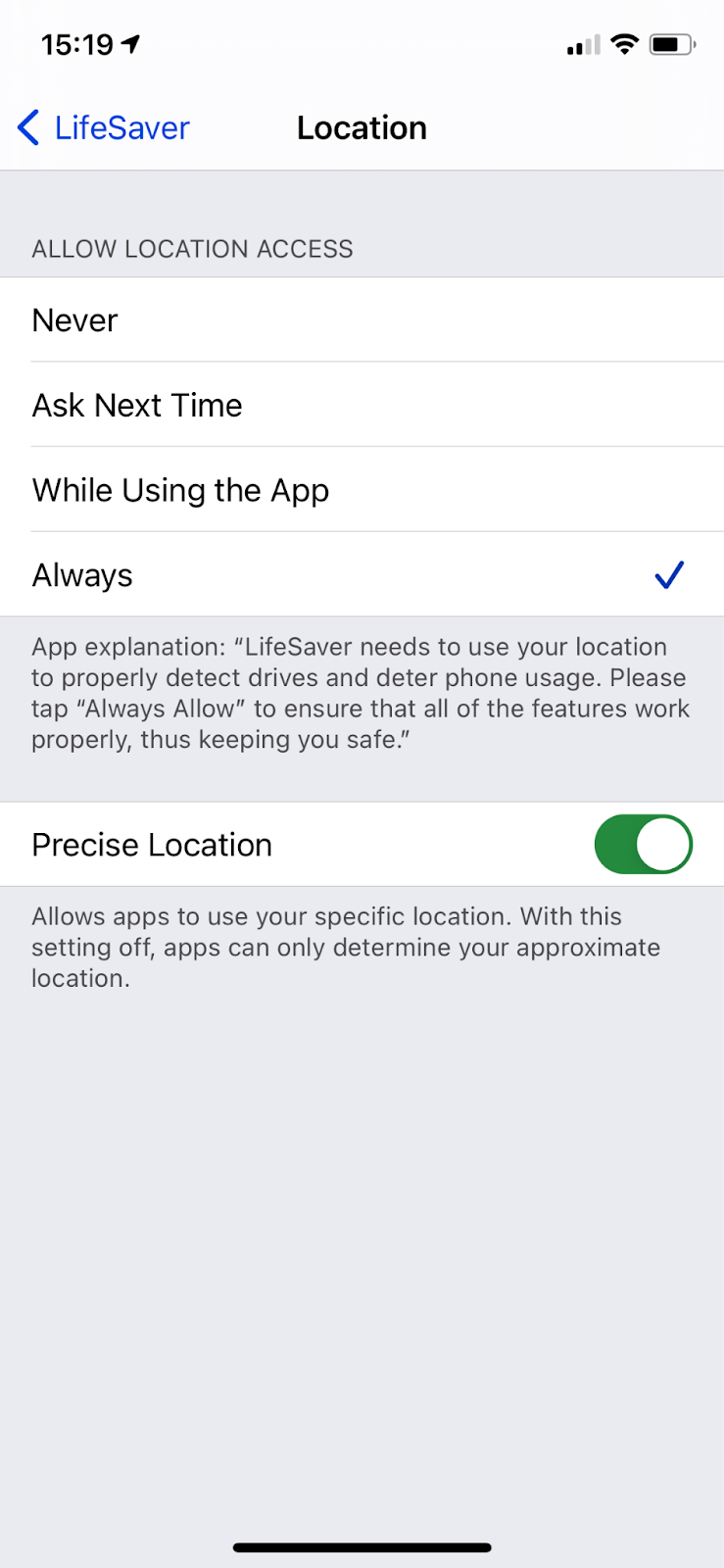
When signing into the app for the first time, you will be guided by the LifeSaver app to set Location Services for the app to "Always Allow" as shown in Screenshots #1 and #2 below.
Never disable Location Services for the LifeSaver app or your status will become inactive, resulting in Inactive Violations which will be reported to your manager(s).
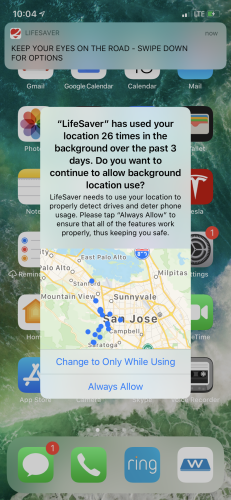
Occasionally, Apple may prompt you to confirm your location permissions; always select “Always Allow” when prompted to maintain compliance and ensure proper functioning. (See the Screenshot #3 below.)
Screenshot #1 Screenshot #2 Screenshot #3
3. Do Not "Swipe Close" the App
After installation and granting permissions, you can swipe up to return to your home screen. Do not "swipe close" the app, as keeping it running in the background ensures continuous uninterrupted operation.
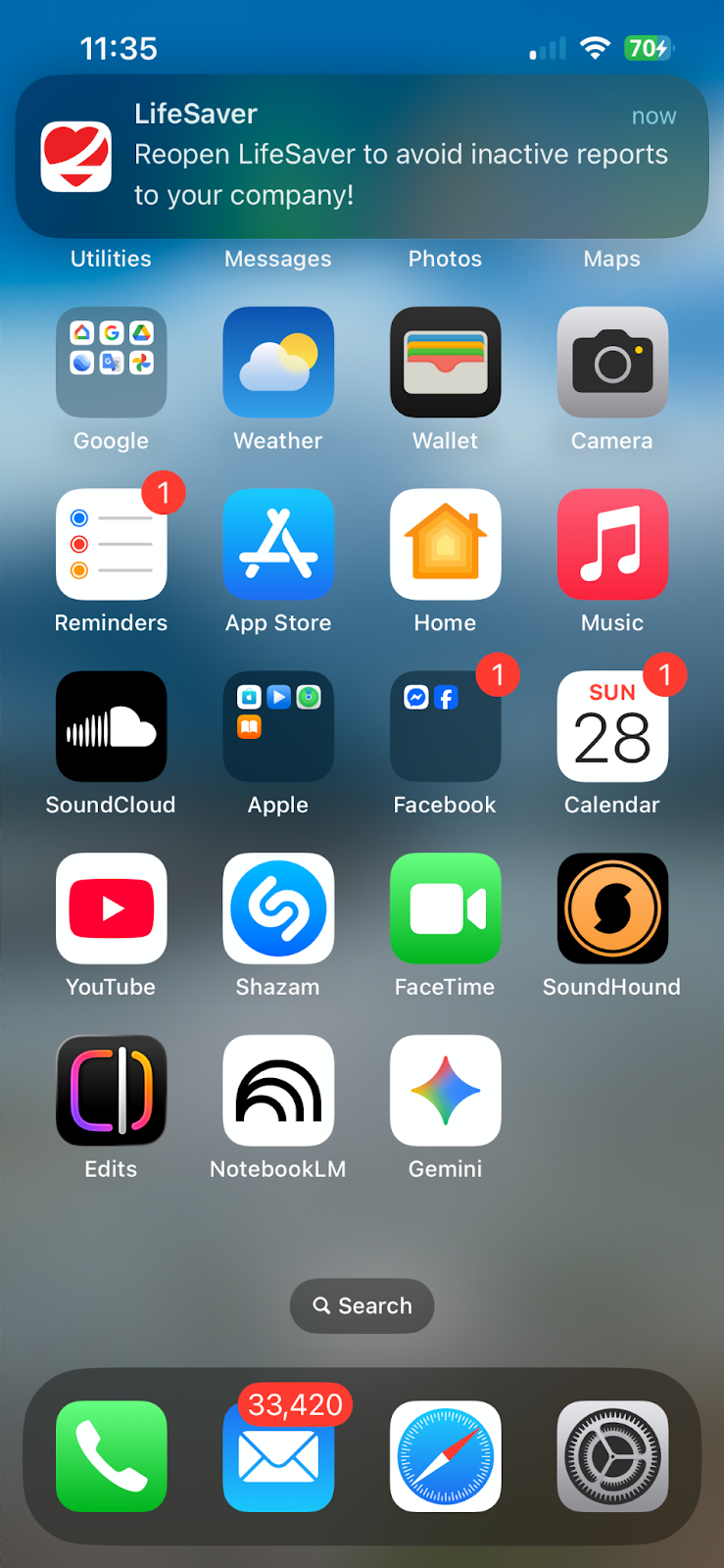
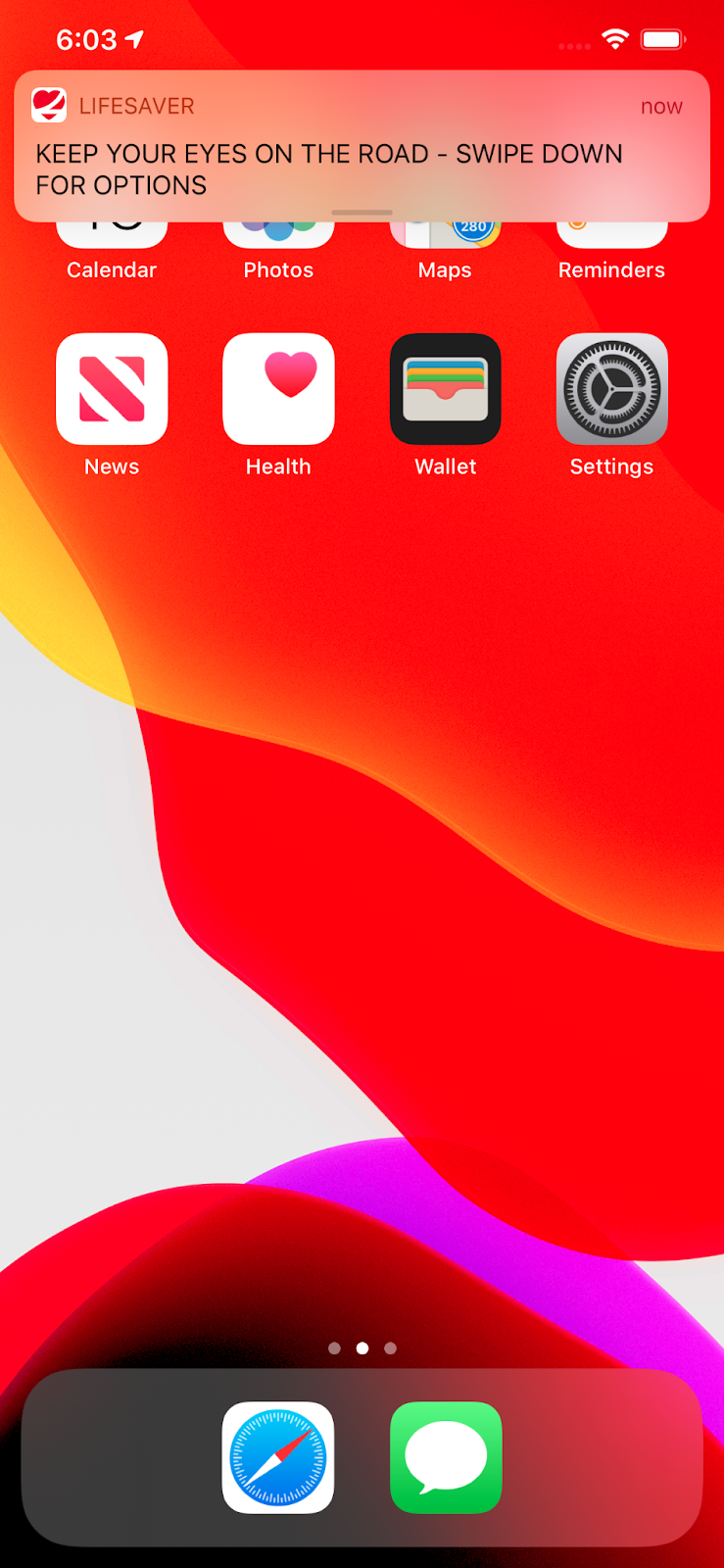
- If you do accidentally "swipe close" the app, you will see the following banner notification (screenshot below), which should remind you to immediately re-open the app to keep in good standing and avoid Inactive Violation reporting to your employer.
- If you do not re-open the app, our self-waking mechanism will automatically reactivate it on the next drive.
CLICK ON THIS BANNER NOTIFICATION TO REOPEN THE LIFESAVER APP
4. Set Your Route Navigation Before Driving
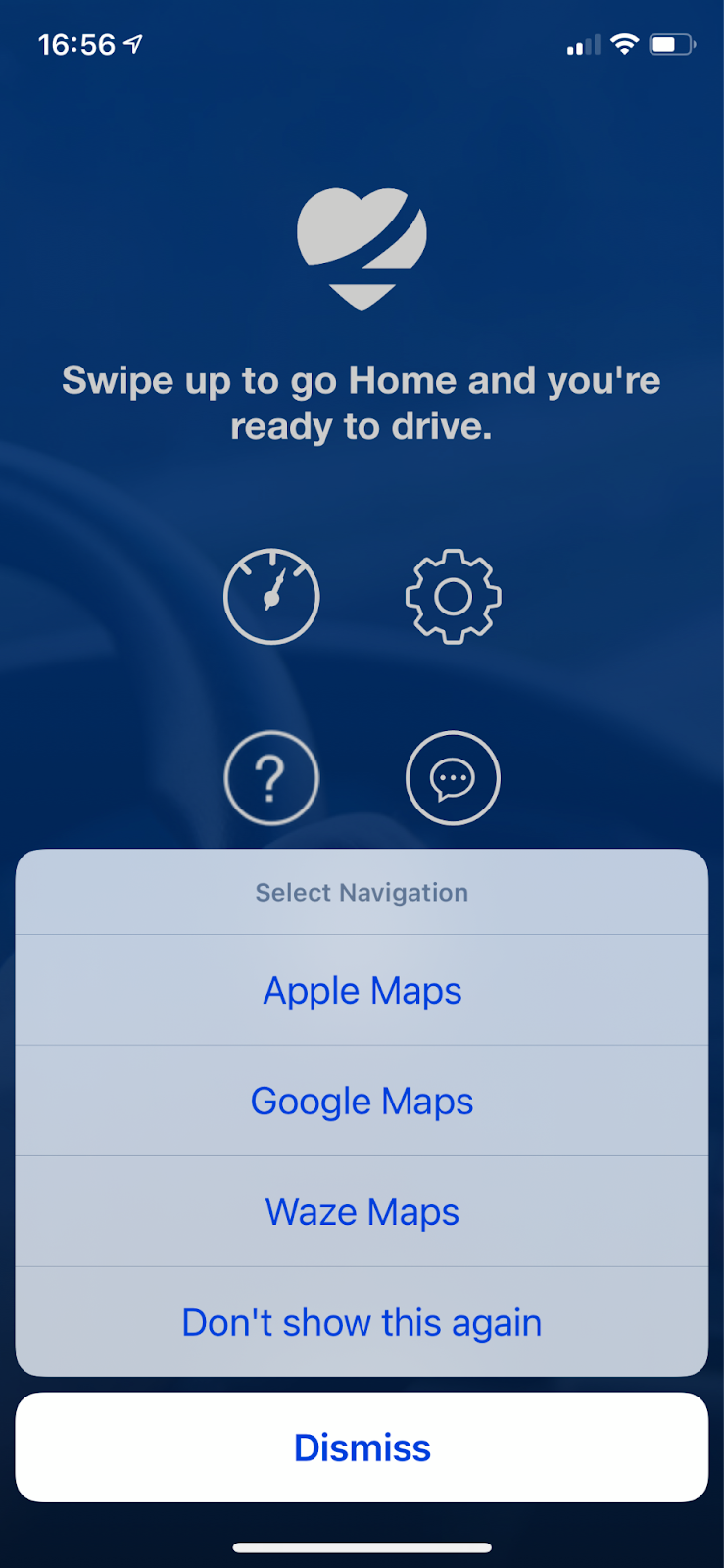
If you plan to use navigation, open the LifeSaver app first, then tap the “Map” icon. Choose your preferred navigation app (Apple Maps, Google Maps or Waze), and enter your destination before starting your drive.
- Once you have started the route navigation on Apple Maps, you should click the power button on your iPhone to lock the phone before driving. Don't worry, the route in Apple Maps will automatically display in full screen outside the lock screen. Instructions for launching a navigation app can be found in this video.
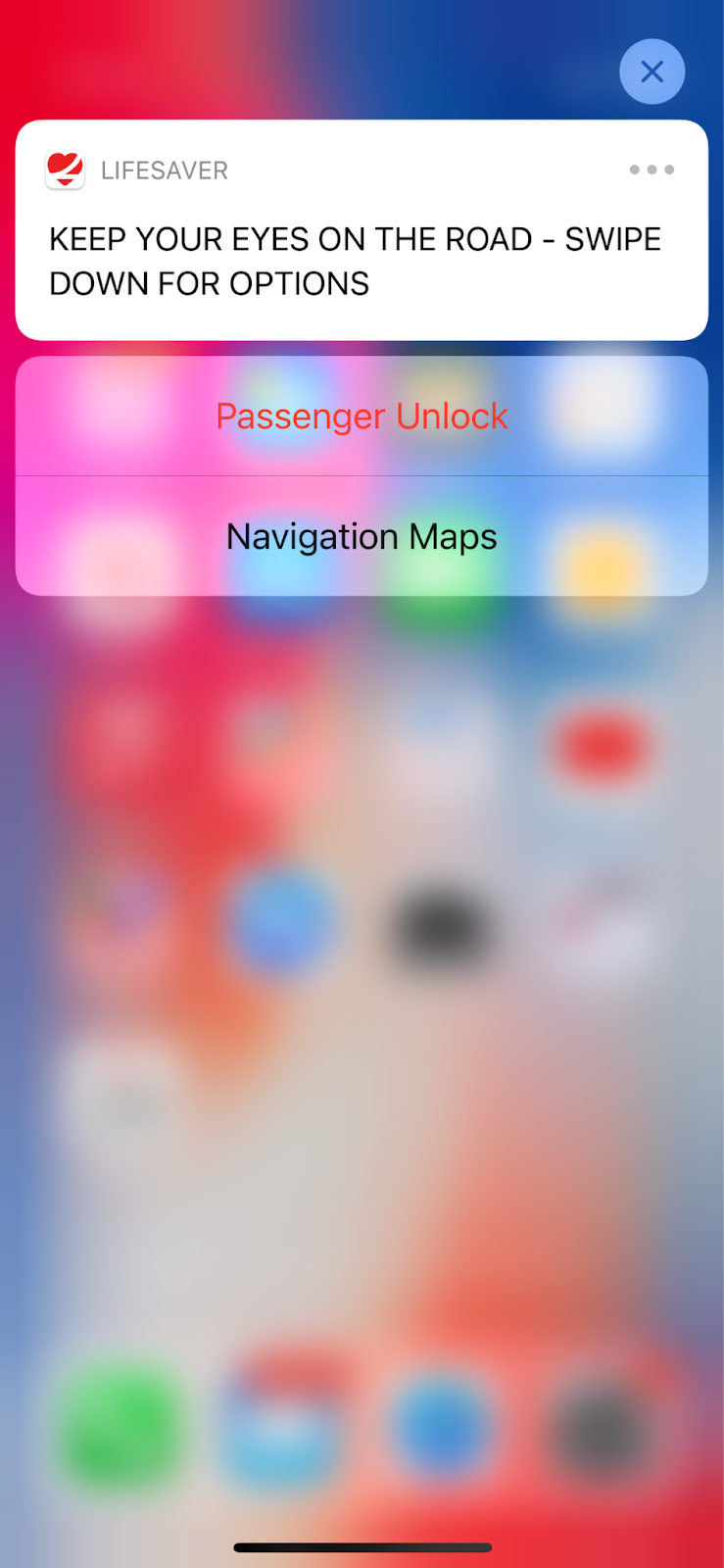
Note: If you’re on the lock screen while driving and haven’t launched navigation via the app, you will see a “KEEP YOUR EYES ON THE ROAD” banner. You can pull it down to self-designate as a passenger or select a navigation app. To avoid violations, it’s best to launch navigation before driving or keep your device locked.
5. Compliance Reporting and Driver Reminders
If any compliance issues arise, your LifeSaver administrator may turn on the driver offline status reminders which will provide you with the tips on how to troubleshoot the cause of your offline status and help you self-correct.
- Health Check and Daily Digest reports may be sent to the driver via text or email to identify issues and remind drivers to get back online quickly.
- Custom reporting can also be configured via APIs, allowing you to receive tailored information on a schedule that suits your needs.
- Regularly check driver statuses in the portal to promptly address any offline devices.