![LifeSaver_Mobile_white_logo_with_tagline.png]](https://2618983.hs-sites.com/hs-fs/hubfs/LifeSaver_Mobile_white_logo_with_tagline.png?width=175&height=50&name=LifeSaver_Mobile_white_logo_with_tagline.png)
Apple Maps Experience (iPhone)
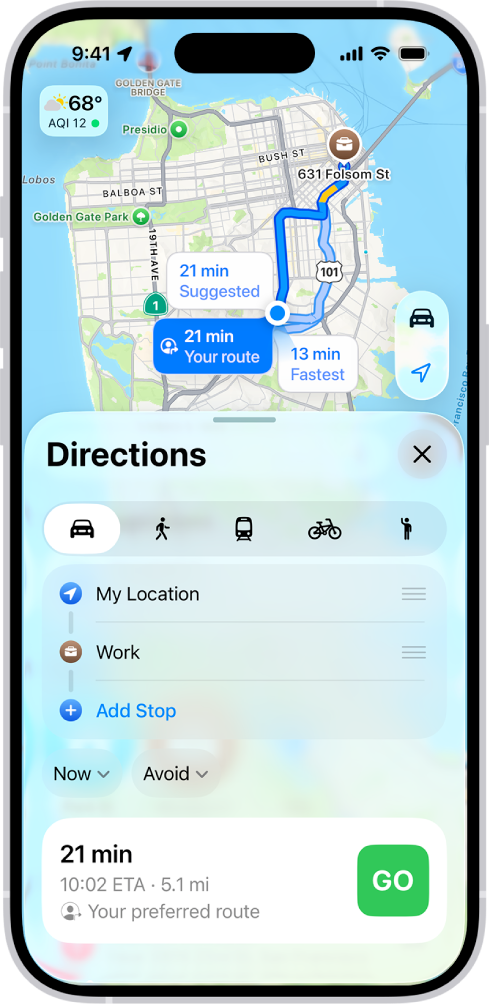
Apple Maps works natively with the iPhone lock screen and does not require any additional setup.
- Open Apple Maps prior to driving
2. Scroll down and tap Google Maps
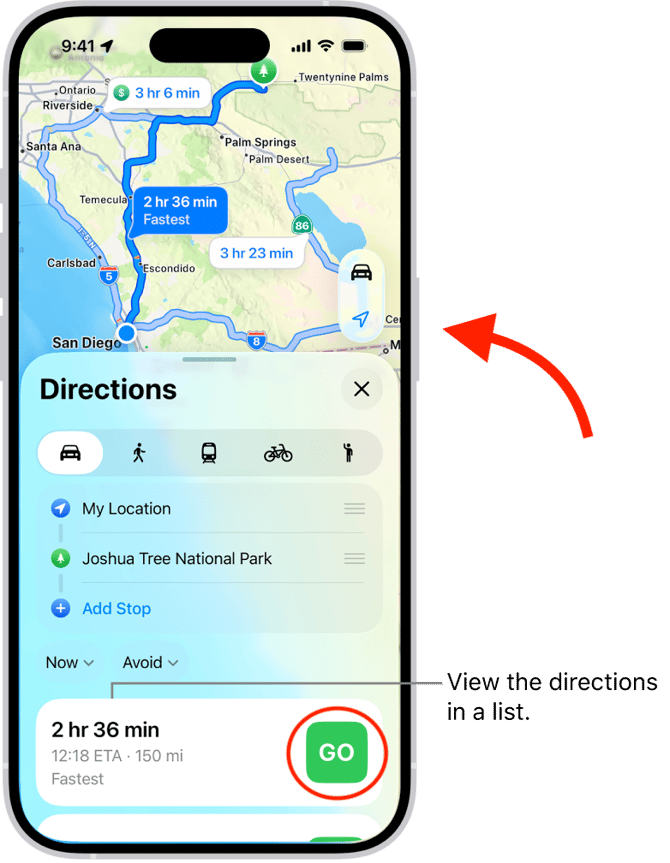
a. This locks your phone while keeping navigation visible on the lock screen
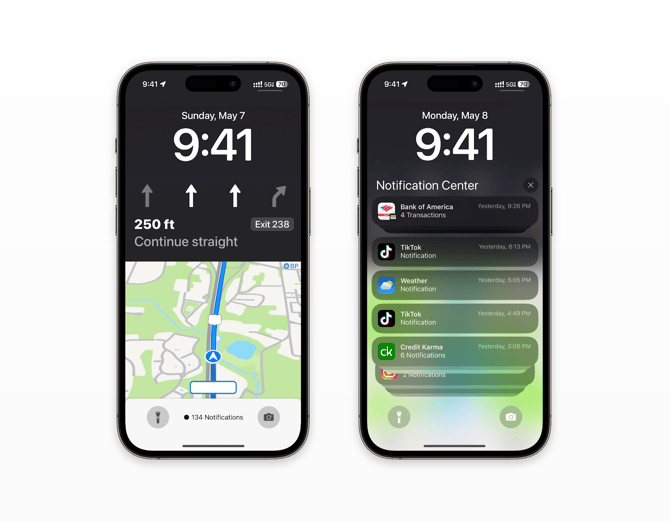
Result:
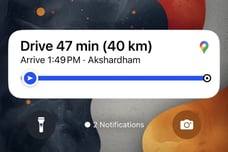
Turn-by-turn directions remain visible on the lock screen while LifeSaver prevents phone distractions.
Google Maps Experience (iPhone)
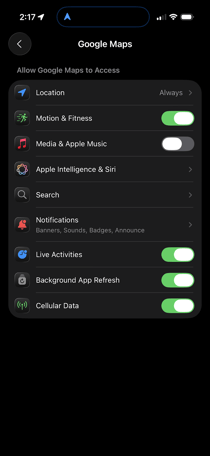
Google Maps requires a one-time setup to enable Live Activities so navigation can appear on the lock screen.
One-Time Setup: Enable Live Activities for Google Maps
- Open Settings on your iPhone
- Scroll down and tap Google Maps
- Tap Live Activities
- Toggle Live Activities ON (green)
 .
. 
This setup only needs to be completed once.
How to Use Google Maps with LifeSaver
- Open Google Maps prior to driving
- Enter your destination
- Tap Go to start navigation
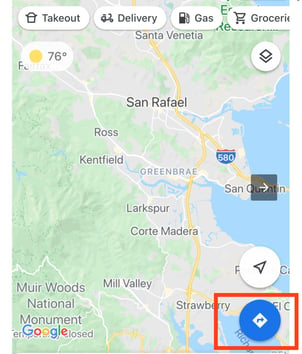
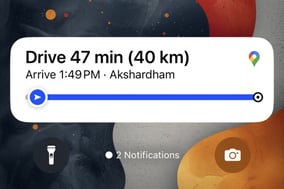
4. Once navigation begins, Click the Lock Screen Button on the side of your iPhone. Google Maps will automatically appear on the lock screen as a Live Activity while LifeSaver is active.
Adding Waze Alerts to your Apple Maps / Google Maps Experience (iPhone)
Drivers can configure their iPhone to hear Waze audible alerts when they are using Apple Maps or Google Maps outside of the lock screen. For those that would like to hear road condition alerts via Waze, a confirmation of correct settings is required.
Confirmation of Settings: Enable Sounds and Alerts
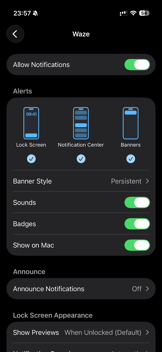
- Open Settings on your iPhone (FIGURE 1)
- Scroll down and tap Notifications
- Scroll down and tap Waze
- Toggle Sounds ON
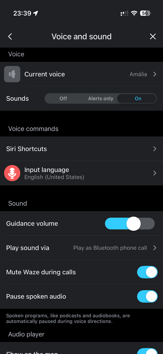
- Open your Waze app (FIGURE 2)
- Tap the 3 horizontal lines at the top left (hamburger menu)
- Tap Settings
- Tap Voice and sound
- Make sure the Sounds setting is set to Alerts only or On
- Tap the back arrow at the top left
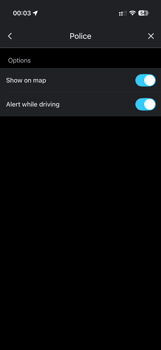
- Tap Alerts and reports (FIGURE 3)
- Tap Reports
- Toggle ON Alert while driving for the alerts you wish to receive
FIGURE 1 FIGURE 2 FIGURE 3
 .
.  .
. 
Helpful Reminders
- Apple Maps requires no additional configuration
- Google Maps Live Activities must be enabled for lock screen navigation
- LifeSaver allows navigation visibility while blocking unsafe phone interactions
- Voice guidance (Siri) works with both Apple Maps and Google Maps